This file is https://github.com/adam-p/markdown-here/wiki/Markdown-Cheatsheet plus a few fixes and additions. Used by obedm503/bootmark to demonstrate it’s styling features.
This is intended as a quick reference and showcase. For more complete info, see John Gruber’s original spec and the Github-flavored Markdown info page.
Note that there is also a Cheatsheet specific to Markdown Here if that’s what you’re looking for. You can also check out more Markdown tools.
Looking for the Kitchen Sink for gists?
Table of Contents
{{toc}} renders an auto-generated outline of h2–h6 headings (from rehype-slug ids). Place it on its own paragraph (legacy [[toc]] collides with Obsidian wikilinks; Hugo {{<toc>}} is normalized to {{toc}} at build time):
Headers
# H1## H2### H3#### H4##### H5###### H6
Alternatively, for H1 and H2, an underline-ish style:
Alt-H1======
Alt-H2------H1
H2
H3
H4
H5
H6
Alternatively, for H1 and H2, an underline-ish style:
Alt-H1
Alt-H2
Emphasis
Emphasis, aka italics, with *asterisks* or _underscores_.
Strong emphasis, aka bold, with **asterisks** or __underscores__.
Combined emphasis with **asterisks and _underscores_**.
Strikethrough uses two tildes. ~~Scratch this.~~
Emphasis, aka italics, with asterisks or underscores.
Strong emphasis, aka bold, with asterisks or underscores.
Combined emphasis with asterisks and underscores.
Strikethrough uses two tildes. Scratch this.
Lists
(In this example, leading and trailing spaces are shown with with dots: ⋅)
1. First ordered list item2. Another item⋅⋅* Unordered sub-list.1. Actual numbers don't matter, just that it's a number⋅⋅1. Ordered sub-list4. And another item.
⋅⋅⋅You can have properly indented paragraphs within list items. Notice the blank line above, and the leading spaces (at least one, but we'll use three here to also align the raw Markdown).
⋅⋅⋅To have a line break without a paragraph, you will need to use two trailing spaces.⋅⋅⋅⋅⋅Note that this line is separate, but within the same paragraph.⋅⋅⋅⋅⋅(This is contrary to the typical GFM line break behaviour, where trailing spaces are not required.)
* Unordered list can use asterisks- Or minuses+ Or pluses- First ordered list item
- Another item
- Unordered sub-list.
-
Actual numbers don’t matter, just that it’s a number
-
Ordered sub-list
-
And another item.
You can have properly indented paragraphs within list items. Notice the blank line above, and the leading spaces (at least one, but we’ll use three here to also align the raw Markdown).
To have a line break without a paragraph, you will need to use two trailing spaces. Note that this line is separate, but within the same paragraph. (This is contrary to the typical GFM line break behaviour, where trailing spaces are not required.)
- Unordered list can use asterisks
- Or minuses
- Or pluses
Links
There are two ways to create links.
[I'm an inline-style link](https://www.google.com)
[I'm an inline-style link with title](https://www.google.com "Google's Homepage")
[I'm a reference-style link][Arbitrary case-insensitive reference text]
[I'm a relative reference to a repository file](../blob/master/LICENSE)
[You can use numbers for reference-style link definitions][1]
Or leave it empty and use the [link text itself].
URLs and URLs in angle brackets will automatically get turned into links.http://www.example.com or <http://www.example.com> and sometimesexample.com (but not on Github, for example).
Some text to show that the reference links can follow later.
[arbitrary case-insensitive reference text]: https://www.mozilla.org[1]: http://slashdot.org[link text itself]: http://www.reddit.com
I’m an inline-style link with title
I’m a relative reference to a repository file
You can use numbers for reference-style link definitions
Or leave it empty and use the link text itself.
URLs and URLs in angle brackets will automatically get turned into links. http://www.example.com or http://www.example.com and sometimes example.com (but not on Github, for example).
Some text to show that the reference links can follow later.
Standalone link previews
When an http or https URL is the only content of a paragraph and the visible link text equals the URL (a bare URL on its own line, separated from other blocks by blank lines), the site replaces that paragraph at build time with an Open Graph source card (same treatment as link posts). Inline URLs, URLs on the same line as other text, and labeled markdown links stay normal links.
Not rendered (stay inline / normal links):
here’s a link: https://example.com
here’s another link: https://example2.com
Rendered (standalone URL paragraph — blank line before and after the URL line):
here’s a link:
Images
Here's our logo (hover to see the title text):
Inline-style:
Reference-style:![alt text][logo]
[logo]: https://github.com/adam-p/markdown-here/raw/master/src/common/images/icon48.png "Logo Title Text 2"Here’s our logo (hover to see the title text):
Inline-style:

Reference-style:
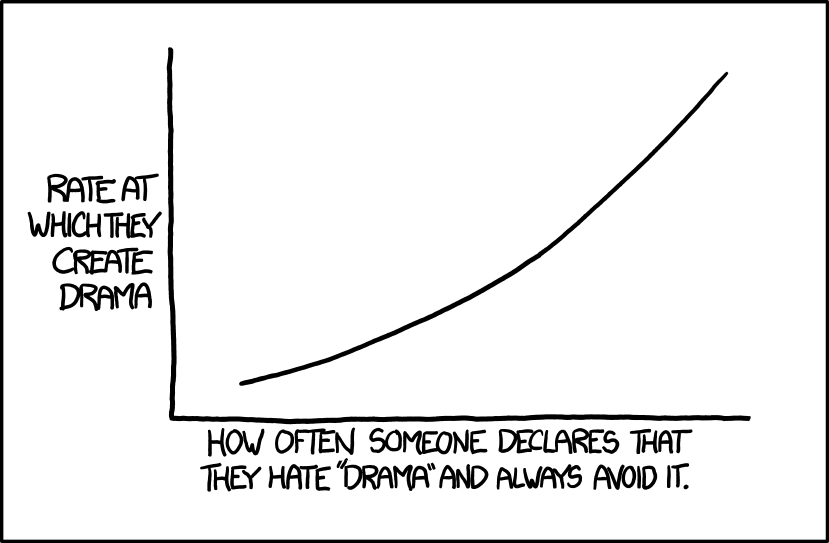
Content images live under content/img/ (any nested path). Use a relative markdown image path from the post file. Optional caption: GFM title after the URL (inline markdown in the title string — links, emphasis, etc.):
Code and Syntax Highlighting
Fenced blocks use Expressive Code (via astro-expressive-code): Shiki highlighting, light/dark themes tied to the site toggle (data-theme on <html>), optional editor/terminal frames, copy-to-clipboard, optional gutter line numbers (plugin), line markers, diff-style lines, inline text/regex markers, and more. Full meta syntax: text markers, frames.
Inline code still uses single backticks in prose (not shown in a fence below).
Inline `code` has `back-ticks around` it.Blocks of code are fenced with three backticks. This page uses txt for “plain” examples inside other sections so Expressive Code always has a known grammar (legacy no-highlight is not a Shiki language id here).
Expressive Code on this site — overview
- Put
title="…"after the language id for a file tab / window title. - Use
frame="none"to skip the window chrome when you want a flat block. - Line markers:
{3}or{1,5-7}for neutral highlight;ins={…}/del={…}for green/red semantic stripes. difffences support+/-columns; addlang="ts"(etc.) to keep syntax colors.- Quoted strings or
/regex/in the meta string mark spans inside lines. - Wrap: this project sets
wrap: trueby default; override per block withwrap=falsefor horizontal scroll on long lines. - Line numbers:
@expressive-code/plugin-line-numbersis enabled inec.config.mjswithshowLineNumbers: falseby default; addshowLineNumbers(orshowLineNumbers=true) to a fence meta string to show the gutter. UsestartLineNumber=Nfor an excerpt that starts at line N of a larger file.showLineNumbers=falseturns the gutter off for that block. - File tab from code: a
// path/to/filestyle comment in the first lines can supply a title when the fence has notitle(see frames).
Plain syntax highlighting (language id only)
const greeting = 'Hello from a plain fenced block'console.log(greeting)Title and editor frame (title="…")
export function pick<T>(items: T[], index: number): T | undefined { return items.at(index)}No frame (frame="none")
{ "name": "flat", "reason": "No window chrome, just the code panel." }Line markers — neutral, inserted, deleted
Neutral highlight on lines 1 and 4–5; inserted on line 2; deleted on line 3:
export type Status = 'idle' | 'busy' | 'done'// line 2: treat as inserted in a hypothetical PR// line 3: treat as removed// lines 4-5: also highlighted (neutral)const next: Status = 'idle'Diff markers with JavaScript highlighting (diff + lang)
function version() { return '0.9.0' return '1.0.0'}Text and regex markers inside lines
type Status = 'idle' | 'busy' | 'done'const current: Status = 'busy'Wrap default vs wrap=false (long line scrolls)
Default wrapping (site defaultProps.wrap: true):
const oneVeryLongIdentifierThatWouldOtherwiseScrollHorizontallyUnlessWordWrapIsEnabled = 'still one logical line in the source file'Explicit no wrap — use the horizontal scrollbar if the viewport is narrow:
const wide = 'aaaaaaaaaaaaaaaaaaaaaaaaaaaaaaaaaaaaaaaaaaaaaaaaaaaaaaaaaaaaaaaa'Line numbers (gutter)
This site loads @expressive-code/plugin-line-numbers via ec.config.mjs and keeps showLineNumbers: false as the default so most blocks stay minimal; opt in per fence.
Gutter on — add showLineNumbers to the opening fence (often combined with title=):
import type { APIRoute } from 'astro'
export const GET: APIRoute = () => { return new Response(JSON.stringify({ ok: true }), { headers: { 'content-type': 'application/json' }, })}Starting line — useful when the snippet is a slice of a longer file (startLineNumber):
// Lines 40–42 as they might appear in a real moduleexport function describeUser(user: { id: string }) { return `User ${user.id}`}Line numbers + line markers — gutter coexists with {…} / ins / del meta:
import { z } from 'zod'const Schema = z.object({ id: z.string() })export type Row = z.infer<typeof Schema>File tab from a leading filename comment
---const { title } = Astro.props---<section>{title}</section>Terminal-style frame (bash / sh)
cd /tmp && pwd && echo "Commands only — no script title, so EC uses a terminal frame."#!/usr/bin/env bashset -euo pipefailecho "With a title and shebang, EC treats this as a script file in an editor-style frame."Fence with no language id (treated as plain text)
No language id on this fence — useful for literal snippets.HTML like <b>tags</b> appears as text, not markup.Charts
Interactive charts use a fenced block with language id chart and JSON (version: 2). The body is a partial ECharts option merged under blog defaults (tooltip, grid, inside zoom unless dataZoom is false, line series without point markers). Site theme colors are applied at runtime — do not set tooltip or axis colors in option.
| Field | Role |
|---|---|
option | Required. ECharts option object (series, axes, dataset, …). |
dataPath | Optional on the fence root. Relative path to .json or .csv under content/data/; merged into option.dataset.source at build time. On a series entry with type: "sankey", dataPath loads JSON { "nodes", "links" } (same shape as ECharts product.json) into series.data / series.links. |
dataZoom | Optional. false disables inside zoom (scroll/drag). |
title, description, height, ariaLabel | Optional chrome (HTML caption + canvas height). |
breakout | Optional shell width: prose (reading column), default (896px), wide (1320px, default), full (viewport). Site caps: src/lib/breakout-container-classes.ts. |
Invalid JSON, bad paths, or options ECharts cannot render fail the build. Charts are not processed by Expressive Code.
Inline dataset.source
dataPath → JSON (line)
dataPath → CSV (line)
Stacked bar + dataPath
Sankey + series dataPath
Pie
Scatter
Disable zoom (dataZoom: false)
Grouped bar with CSV matrix (dataPath)
CSV becomes dataset.source with a header row. Series use encode against column names.
Tables
Tables aren’t part of the core Markdown spec, but they are part of GFM and Markdown Here supports them. They are an easy way of adding tables to your email — a task that would otherwise require copy-pasting from another application.
Colons can be used to align columns.
| Tables        | Are           | Cool  || ------------- |:-------------:| -----:|| col 3 is      | right-aligned | $1600 || col 2 is      | centered      |   $12 || zebra stripes | are neat      |    $1 |
There must be at least 3 dashes separating each header cell.The outer pipes (|) are optional, and you don't need to make theraw Markdown line up prettily. You can also use inline Markdown.
Markdown | Less | Pretty--- | --- | ---*Still* | `renders` | **nicely**1 | 2 | 3
Colons can be used to align columns.
| Tables | Are | Cool |
|---|---|---|
| col 3 is | right-aligned | $1600 |
| col 2 is | centered | $12 |
| zebra stripes | are neat | $1 |
There must be at least 3 dashes separating each header cell. The outer pipes (|) are optional, and you don’t need to make the raw Markdown line up prettily. You can also use inline Markdown.
| Markdown | Less | Pretty |
|---|---|---|
| Still | renders | nicely |
| 1 | 2 | 3 |
Blockquotes
> Blockquotes are very handy in email to emulate reply text.> This line is part of the same quote.
Quote break.
> This is a very long line that will still be quoted properly when it wraps. Oh boy let's keep writing to make sure this is long enough to actually wrap for everyone. Oh, you can *put* **Markdown** into a blockquote.
Blockquotes are very handy in email to emulate reply text. This line is part of the same quote.
Quote break.
This is a very long line that will still be quoted properly when it wraps. Oh boy let’s keep writing to make sure this is long enough to actually wrap for everyone. Oh, you can put Markdown into a blockquote.
Callouts
Callouts are special types of blockquotes.
Use callouts to include additional content without breaking the flow of prose.
To create a callout, add [!info] to the first line of a blockquote, where info is the type identifier. The type identifier determines how the callout looks and feels.
> [!info] Here's a callout title> Here's a callout block.> It supports **Markdown**!Here’s a callout title
Here’s a callout block. It supports !
Callout titles
By default, the title of the callout is its type identifier in title case. You can change it by adding text after the type identifier:
> [!tip] Callouts can have custom titles> Like this one.Callouts can have custom titles
Like this one.
You can even omit the body to create title-only callouts:
> [!tip] Title-only calloutTitle-only callout
Foldable callouts
You can make a callout foldable by adding a plus (+) or a minus (-) directly after the type identifier.
A plus sign expands the callout by default, and a minus sign collapses it instead.
> [!faq]- Are callouts foldable?> Yes! In a foldable callout, the contents are hidden when the callout is collapsed.Are callouts foldable?
Yes! In a foldable callout, the contents are hidden when the callout is collapsed.
Nested callouts
You can nest callouts in multiple levels.
> [!question] Can callouts be nested?> > [!todo] Yes!, they can.> > > [!example] You can even use multiple layers of nesting.Can callouts be nested?
Yes!, they can.
You can even use multiple layers of nesting.
Supported callout types
You can use several callout types and aliases. Each type comes with a different background color and icon.
To use these default styles, replace info in the examples with any of these types, such as [!tip] or [!warning].
Any unsupported type defaults to the note type.
Note
> [!note]> Lorem ipsum dolor sit ametSummary
> [!summary]> Lorem ipsum dolor sit ametInfo
> [!info]> Lorem ipsum dolor sit ametTODO
> [!todo]> Lorem ipsum dolor sit ametTip
> [!tip]> Lorem ipsum dolor sit ametSuccess
> [!success]> Lorem ipsum dolor sit ametQuestion
> [!question]> Lorem ipsum dolor sit ametWarning
> [!warning]> Lorem ipsum dolor sit ametFailure
> [!failure]> Lorem ipsum dolor sit ametDanger
> [!danger]> Lorem ipsum dolor sit ametBug
> [!bug]> Lorem ipsum dolor sit ametExample
> [!example]> Lorem ipsum dolor sit ametQuote
> [!quote]> Lorem ipsum dolor sit ametInline HTML
You can also use raw HTML in your Markdown, and it’ll mostly work pretty well.
<dl>  <dt>Definition list</dt>  <dd>Is something people use sometimes.</dd>
<dt>Markdown in HTML</dt> <dd>Does *not* work **very** well. Use HTML <em>tags</em>.</dd></dl>- Definition list
- Is something people use sometimes.
- Markdown in HTML
- Does *not* work **very** well. Use HTML tags.
Horizontal Rule
Three or more...
---
Hyphens
***
Asterisks
___
Underscores
Three or more…
Hyphens
Asterisks
Underscores
Line Breaks
My basic recommendation for learning how line breaks work is to experiment and discover — hit <Enter> once (i.e., insert one newline), then hit it twice (i.e., insert two newlines), see what happens. You’ll soon learn to get what you want. “Markdown Toggle” is your friend.
Here are some things to try out:
Here's a line for us to start with.
This line is separated from the one above by two newlines, so it will be a *separate paragraph*.
This line is also a separate paragraph, but...This line is only separated by a single newline, so it's a separate line in the *same paragraph*.
Here’s a line for us to start with.
This line is separated from the one above by two newlines, so it will be a separate paragraph.
This line is also begins a separate paragraph, but… This line is only separated by a single newline, so it’s a separate line in the same paragraph.
(Technical note: Markdown Here uses GFM line breaks, so there’s no need to use MD’s two-space line breaks.)
YouTube Videos
They can’t be added directly but you can add an image with a link to the video like this:
<a href="http://www.youtube.com/watch?feature=player_embedded&v=YOUTUBE_VIDEO_ID_HERE" target="_blank"><img src="http://img.youtube.com/vi/YOUTUBE_VIDEO_ID_HERE/0.jpg"alt="IMAGE ALT TEXT HERE" width="240" height="180" border="10" /></a>Or, in pure Markdown, but losing the image sizing and border:
[](http://www.youtube.com/watch?v=YOUTUBE_VIDEO_ID_HERE)